
Image enlargement at 2× and 4×: downloaded dimensions, text edges and loading time
A synthetic 160 × 120 image tested in HotAI Image enlargement, with both PNG downloads, WASM phase timings and a comparison image.
What to consider
In these tests, the same 160 × 120 image downloaded as a 320 × 240 PNG at 2× and a 640 × 480 PNG at 4×, matching the settings. Both used the General model through WASM in WebKit. Shape edges became more continuous, but text strokes changed and pale halos remained around dark outlines. Total waits were 104.227 and 115.648 seconds, mostly for model loading; these are not pure inference times. Choose a scale based on the required output dimensions, then compare text against the original.
Enlarging the same anonymous synthetic image
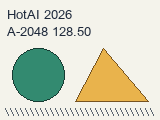
The tests ran on HotAI’s public Image enlargement page on October 20, 2026. The 160 × 120 input contains two text lines, HotAI 2026 and A-2048 128.50, above a circle, a triangle and thin diagonal lines. A test script generated the image without private photographs. The original is available through the links below.
Each run opened a new background tool page, selected General (fast), and changed only the scale between 2× and 4×. Both exported PNG. The environment was macOS ARM64 with headless WebKit 18.4 and a 1440 × 1000 viewport. Both workers reported wasm as the execution provider. These are not GPU benchmarks, and page-loading speed is not presented as image-processing speed.
Both downloads matched the selected dimensions
We clicked Download image, saved the browser’s returned file, and decoded it to read its dimensions. A page message alone was not counted as success. At 2×, width and height each doubled, giving four times the pixels. At 4×, width and height each quadrupled, giving sixteen times the pixels.
| Selected scale | Input dimensions | Actual PNG dimensions | Button to completion |
|---|---|---|---|
| 2× | 160 × 120 | 320 × 240 | 104.227 s |
| 4× | 160 × 120 | 640 × 480 | 115.648 s |
Check text strokes after enlargement
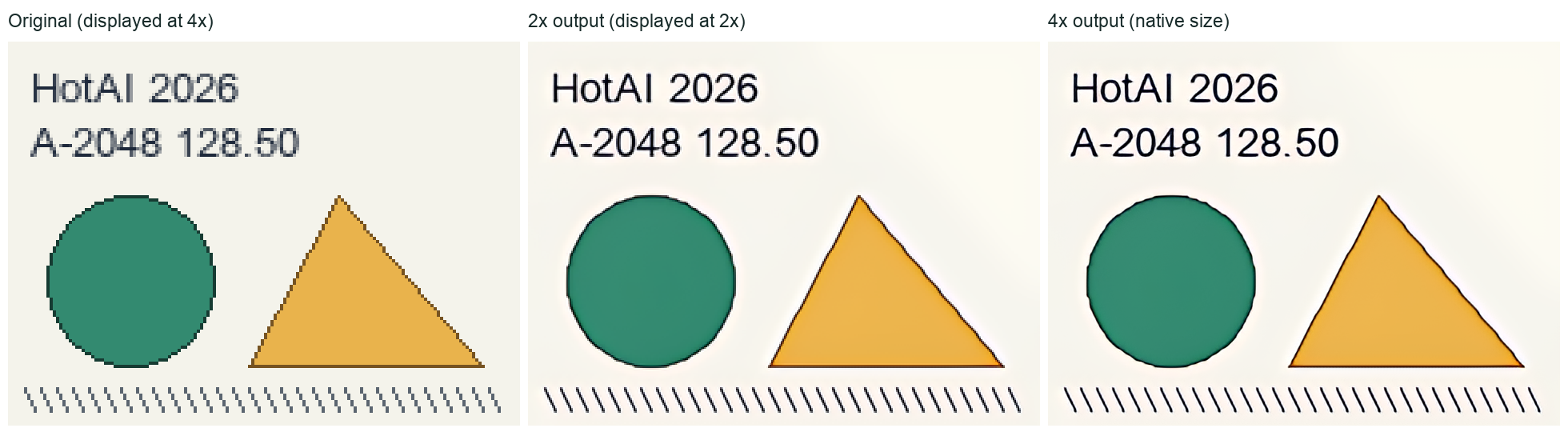
The comparison displays all three versions at the same size. The left panel shows the original at 4× using nearest-neighbor scaling; the middle shows the 2× output at a further 2× using nearest-neighbor scaling; the right shows the 4× output at native pixels. The labels distinguish display zoom from the tool’s actual output scale.
In this sample, circle edges and diagonal lines became more continuous, and letters and digits remained readable in the 4× result. Pale halos persisted around dark outlines, however, and thin text strokes bent slightly. The input already contained text and shapes; this test does not show recovery of absent real details. Verify amounts against the original document and use the original text layer for brand lettering when possible.
Separating loading time from image processing
Both background pages recorded a download of the roughly 4.87 MB General model; the second run was not treated as a cache hit. The first timing below starts at the button click and ends when the worker reports initialization, including a small amount of page and worker response before downloading. Ready-to-result includes tiling and any required resizing. These measurements explain these runs, not speeds on other networks or devices.
| Scale | Click to initialization start | Model initialization | Ready to result |
|---|---|---|---|
| 2× | 99.286 s | 4.254 s | 0.592 s |
| 4× | 110.789 s | 3.679 s | 0.702 s |
Choosing a scale and model for the output
If the required width and height are within a 2× enlargement, try 2× first and inspect the download at its intended display size. Try 4× for a larger canvas, but do not assume more accurate text. In the current implementation, General uses the realesr-general-x4v3 fourfold model and resizes to the target when 2× is selected. Runtime differences cannot be inferred solely from the output pixel count.
This run tested only the General model with one text-and-geometry image. It did not compare real photographs or test the Photo (high quality) and Anime models, so it cannot establish results for faces or landscape textures. Real-ESRGAN’s official model list describes its small general model separately from anime models. Try the appropriate type on your own image and keep the result that suits it.
Checked sources
The following sources support the project descriptions and reported facts. The analysis is by the site editors; claims from these sources are not presented as results from our own tests.